Computers misbehave. They slow down, freeze, refuse to start, fill up with unwanted programs or lose their connection to the printer at the worst possible moment. Many of these problems can be fixed with a few safe, simple steps, saving you time and money. Knowing what to try first also means you can describe the problem clearly if you do need help.
This guide covers safe first steps for common problems on Windows and Mac computers. If it's a work device, check with your IT team before making changes.
Back up
First
Before big changes
Restart
Fixes a lot
Properly, not just sleep
Official
Tools only
Avoid dodgy cleaners
Before you start: back up
Before making significant changes, make sure your important files are backed up. If something goes wrong, you'll still have your data. Read our security guide for backup tips.
Restart properly
Restarting fixes a surprising number of problems: it clears temporary glitches, frees up memory and completes pending updates. Use the restart option rather than just closing the lid or putting the computer to sleep. If your computer is frozen, hold down the power button until it turns off, wait a moment and turn it back on, but use this only as a last resort, as unsaved work may be lost.
Install updates
Updates fix bugs and security problems, and pending updates can slow your computer. Check for operating system updates, and update your apps and drivers. Restart after updating.
Slow computer
If your computer is sluggish:
- Check what's running. Use Task Manager on Windows or Activity Monitor on Mac to see which programs are using the most processor, memory or disk. Close programs you don't need.
- Reduce startup programs. Many programs set themselves to start automatically. Disable those you don't need in your system settings.
- Free up storage. A nearly full drive slows computers. Delete files you don't need, empty the recycle bin or trash, use built-in storage tools and move large files to external or cloud storage.
- Limit browser tabs and extensions. Dozens of open tabs and unnecessary extensions use a lot of memory.
- Scan for malware using your built-in security tools or reputable security software.
- Consider the hardware. An older computer with a traditional hard drive or limited memory may benefit from an upgrade, or it may be time for a replacement.

Startup problems and safe mode
If your computer won't start properly, crashes during startup or behaves strangely after installing software or drivers, safe mode can help. Safe mode starts the computer with only essential drivers and services, which helps you identify and fix problems.
- Windows: you can usually reach safe mode through the recovery options in Settings, or by holding Shift while selecting Restart from the power menu, then choosing Troubleshoot, Advanced options and Startup Settings.
- Mac: the method depends on whether your Mac uses Apple silicon or an Intel processor. Apple's support site explains both.
In safe mode, you can uninstall recently added software, roll back drivers, run a malware scan or use system restore features. If the computer works normally in safe mode, the problem is likely caused by software or drivers rather than hardware.
Unwanted software and adware
Unwanted programs, browser toolbars and adware often arrive bundled with free downloads. They can slow your computer, change your browser's home page or search engine and show pop-up ads.
- Uninstall programs you don't recognise or need through your system settings.
- Remove unknown browser extensions and reset your browser settings if needed.
- Run a scan with reputable security software.
- In future, download software only from official sources and read installation screens carefully to decline extras.
Scary pop-ups
If a pop-up says your computer is infected and gives a phone number to call, it's almost certainly a scam. Don't call the number. Close the browser, using Task Manager or Force Quit if necessary, and run a security scan. Read our guide to remote-access scams.
Printer problems
- Check that the printer is on, connected and has paper and ink.
- Restart the printer and your computer.
- Make sure the printer and computer are on the same network.
- Remove and re-add the printer in your system settings.
- Update or reinstall the printer driver from the manufacturer's official website.
Wi-Fi and connection problems
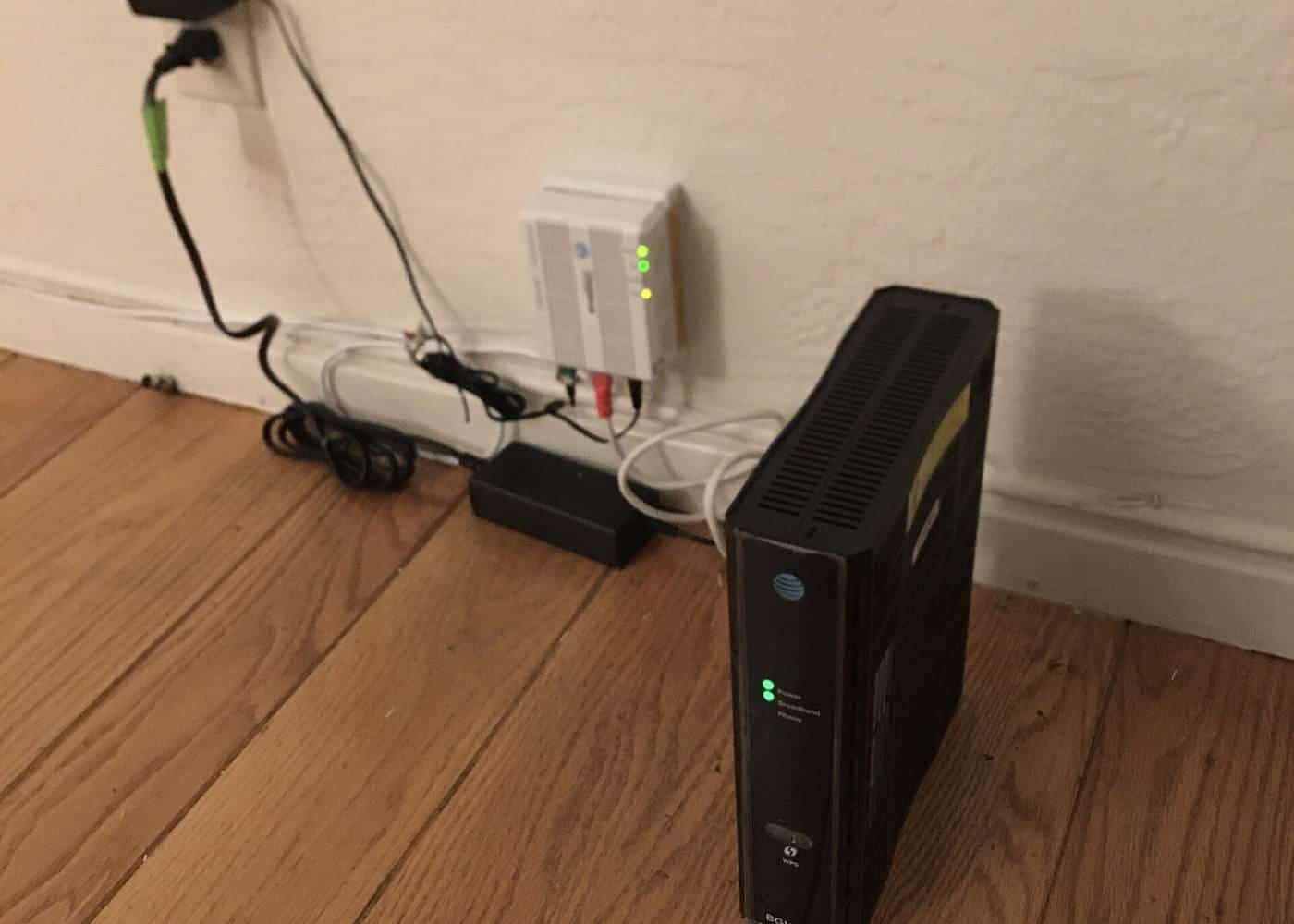
Restart your modem and router, check whether other devices can connect, forget and rejoin the Wi-Fi network, and move closer to the router. Read our internet guide for more.
When to get help
Call in a professional if:
- Your computer won't start, even in safe mode.
- You hear clicking, grinding or other unusual noises.
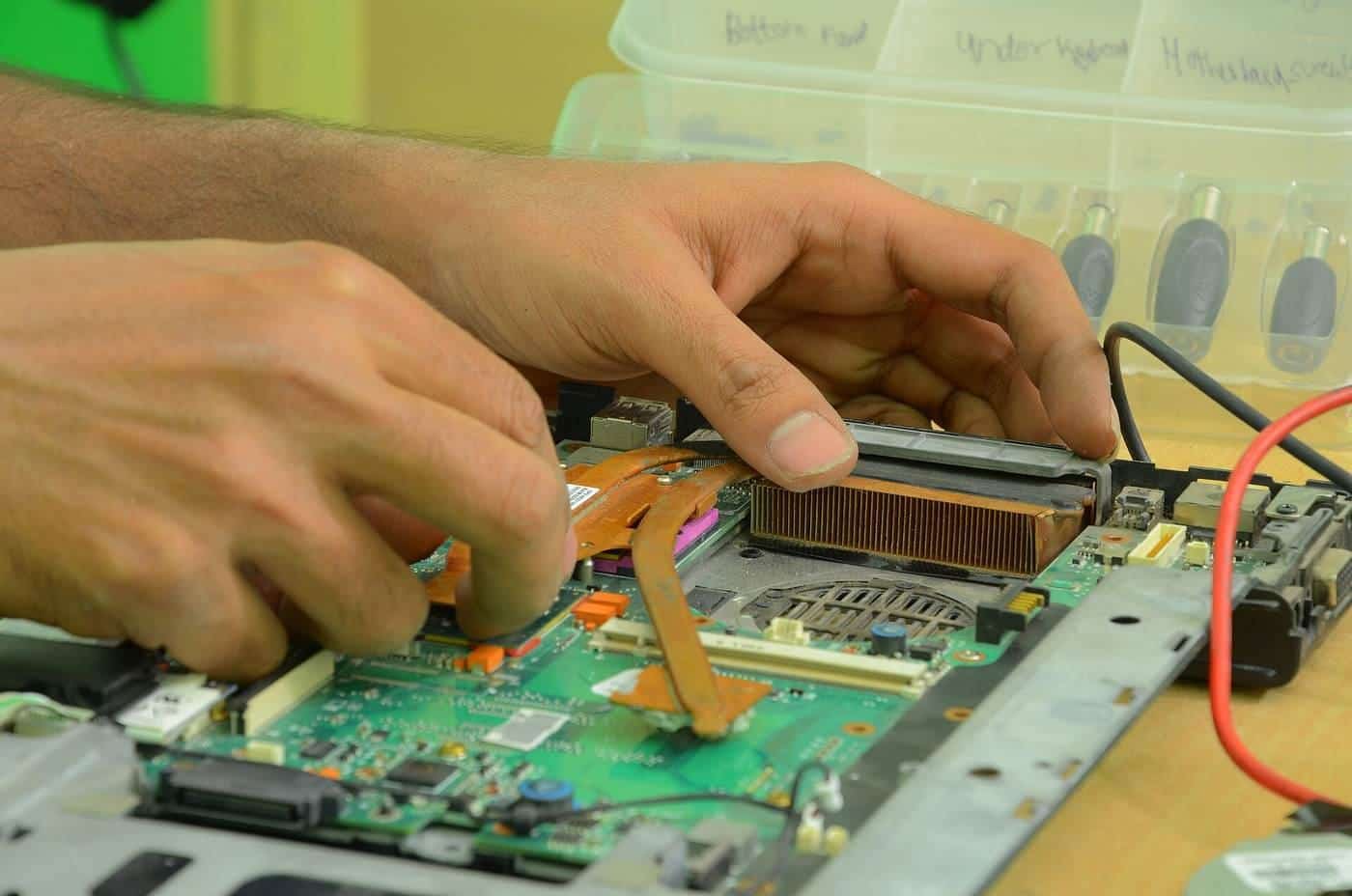
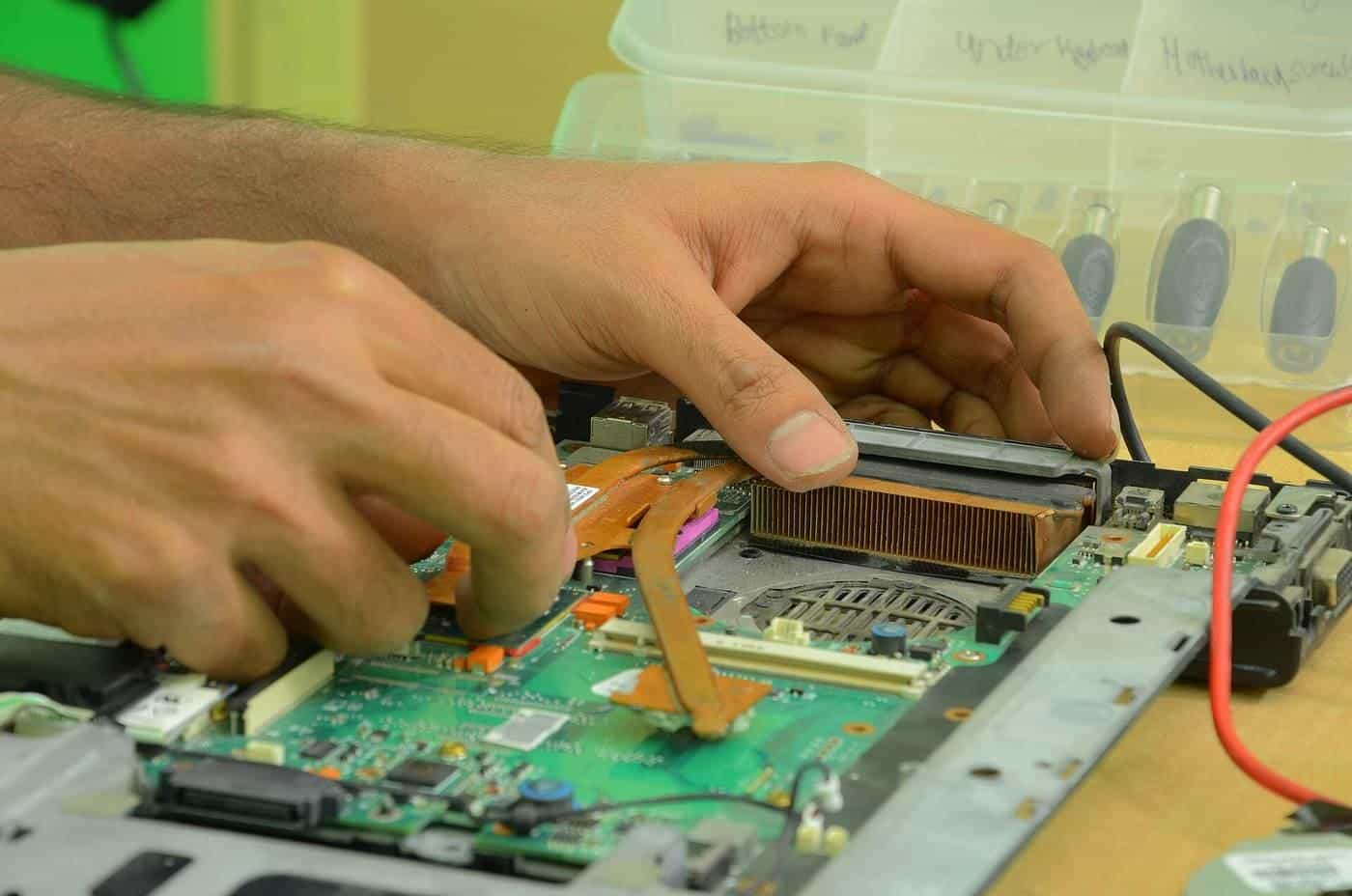
- The computer overheats, smells of burning or shows physical damage.
- You can't remove malware or suspect your accounts have been compromised.
- You're worried about losing important data.
Choose a provider you contact yourself, not one who contacts you. Read our guide to how remote tech support works. Australian Consumer Law gives you guarantees on products and services, so if a recently bought device is faulty, contact the seller.
Recycling old devices
When it's time to replace a computer, back up your data, sign out of accounts and securely erase the device before passing it on or recycling it. Use an e-waste recycling service rather than putting electronics in household rubbish.
Keep notes as you go
When you troubleshoot, write down each step and what happened. It sounds tedious, but it stops you repeating things that did not work, and if you do end up calling for help, a list of what you have already tried saves time and money. Note any error messages exactly, including codes, because a precise message is much easier to search for than a vague description.
Change one thing at a time. If you uninstall a program, change a setting and restart all at once, you will not know which step fixed the problem, or which one caused a new one.
Know when to stop
Some problems are best left to a professional. Stop and get help if you hear clicking or grinding from the computer, smell burning, see swelling in a laptop battery, or notice the machine getting unusually hot. Stop too if fixing the problem would mean opening the case, editing system files you do not understand or running commands copied from an unknown website. And if the computer holds work or photos you cannot afford to lose, and you have no recent backup, avoid anything that might make matters worse.
Getting help early is often cheaper than fixing a bigger problem caused by a well-meant attempt that went wrong.
Prevention habits
Most common problems become rarer with a few habits: install updates when prompted, restart the computer at least weekly, keep some free space on the main drive, uninstall programs you no longer use, and keep a current backup of anything important. Be wary of free downloads that bundle extra toolbars or "optimisers", which often cause the slowdowns they claim to fix.
Key points
Back up first, restart properly and install updates. For slow computers, check what's running, cut startup programs, free up storage and scan for malware. Use safe mode to troubleshoot startup and software problems, avoid dodgy cleaners and pop-up phone numbers, and get professional help for hardware faults or data at risk.
Frequently asked questions
Why is my computer so slow?
Common causes include too many programs running at startup, low storage space, pending updates, malware, an ageing hard drive or not enough memory for what you're doing.
What is safe mode?
A diagnostic startup mode that loads only essential drivers and services. It helps you troubleshoot problems caused by software, drivers or malware.
Does restarting really help?
Often, yes. Restarting clears temporary glitches, frees memory and completes updates. Use restart rather than just closing the lid.
Should I download a free PC cleaner?
Be cautious. Some so-called cleaners and optimisers are unnecessary, aggressive or even malicious. Use built-in tools and reputable software from official sources.
When should I get professional help?
If your computer won't start, you hear unusual noises, you suspect hardware failure, you can't remove malware or you might lose important data. For work devices, contact your IT team.
Sources and further reading
Facts on this page were checked against these primary and official sources. Conditions change — confirm before you travel or buy.
- Cyber.gov.au — Australian Signals Directorate
- Scamwatch — National Anti-Scam Centre
- Consumer guarantees — ACCC
- E-waste recycling — DCCEEW