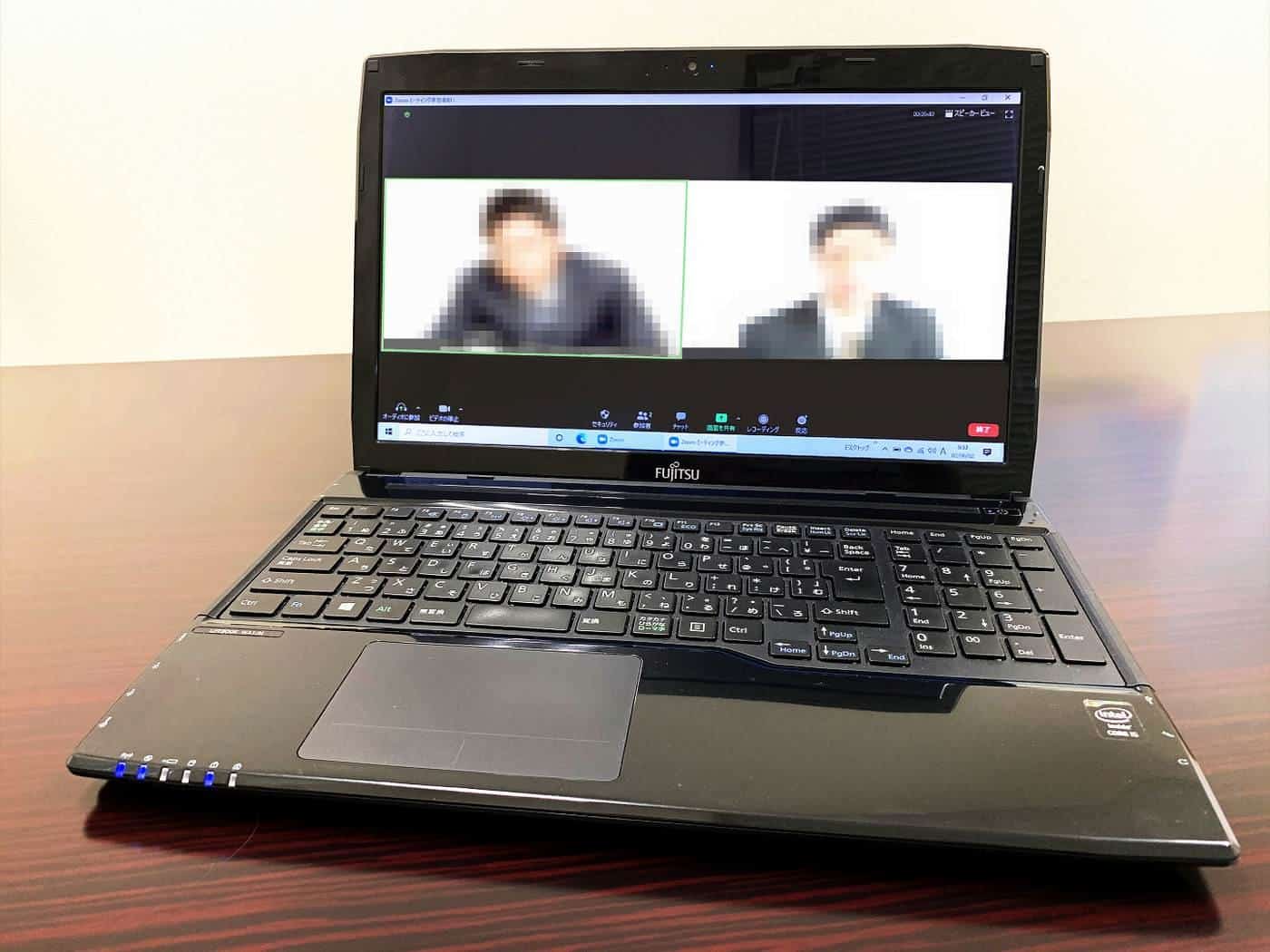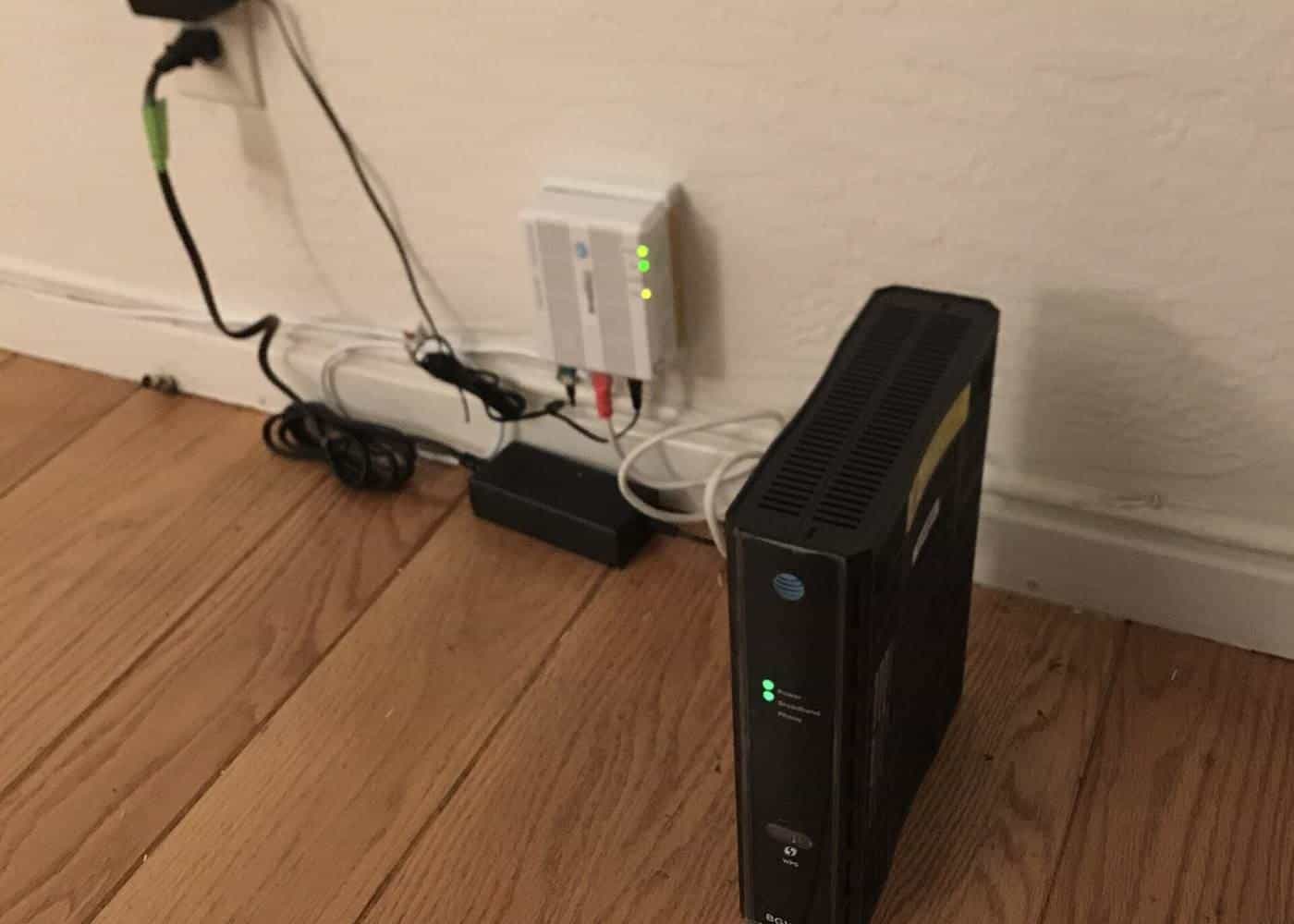
When the internet drops out mid-meeting, remote work grinds to a halt. Your connection affects everything: video calls, file sharing, access to work systems and your ability to collaborate. Yet many internet problems aren't caused by the plan you pay for, but by Wi-Fi coverage, equipment or how the connection is shared at home.
This guide explains the main types of internet connection in Australia, what matters for remote work, how to improve your Wi-Fi and what to do when things go wrong.
Upload
Key for calls
Often lower than download
Ethernet
Most stable
Cable beats Wi-Fi
Hotspot
Backup plan
For outages
Types of connection
Most Australian homes connect to the internet through the National Broadband Network, which uses several technologies depending on where you live:
- Fibre to the premises (FTTP): fibre runs all the way to your home. Generally the fastest and most reliable option.
- Fibre to the curb (FTTC): fibre runs to a point near your property, with the existing copper line covering the last stretch.
- Fibre to the node (FTTN): fibre runs to a cabinet in your street, with copper from there to your home. Speeds depend partly on the length and condition of the copper.
- Hybrid fibre-coaxial (HFC): uses cable television-style coaxial cable for the final connection.
- Fixed wireless: a radio link from a tower to an antenna on your home, common in regional areas.
- Satellite: used in remote areas.
Some people use mobile broadband or home wireless broadband on mobile networks instead, and other satellite services are also available. Each technology has different characteristics for speed, latency and reliability. Some homes can upgrade from copper-based technologies to fibre; ask your provider.
What matters for remote work
Download speed affects how quickly you receive data, such as downloading files or watching video.
Upload speed affects how quickly you send data, such as your video on calls, uploading files or backing up to the cloud. Many plans have much lower upload than download speeds, and upload is often the bottleneck for remote workers.
Latency is the delay for data to travel to its destination and back. High latency causes awkward pauses on calls. Satellite connections typically have higher latency than fibre.
Stability matters as much as speed. A connection that regularly drops out or slows at busy times is frustrating even if its peak speed is high.
Sharing matters too. If others in your home are streaming, gaming or on calls at the same time, they share your bandwidth.
Choosing a plan
When choosing a plan, consider the speeds your connection type can support, typical evening speeds, upload speed, data allowance, contract terms and customer service. Providers must give you key information about plans, including typical speeds. Look for plans with enough upload speed for your work, and remember that a faster plan won't help if your Wi-Fi is the bottleneck.
Improving your Wi-Fi
Wi-Fi signals weaken with distance and are blocked by walls, floors, mirrors, appliances and even fish tanks. To improve coverage:
- Move the router. Put it in a central, elevated, open spot, not in a cupboard or on the floor behind the TV.
- Use the right band. Many routers offer 2.4 GHz, which travels further but is slower and more crowded, and 5 GHz or higher bands, which are faster over shorter distances.
- Upgrade old equipment. An old router may not support newer Wi-Fi standards.
- Use a mesh system. Mesh Wi-Fi uses several units placed around the home to provide even coverage.
- Avoid basic range extenders where possible; they can halve speeds.
- Reduce interference. Keep the router away from microwaves, cordless phones and baby monitors.
Use a cable if you can
A wired ethernet connection from your computer to the router is usually faster, more stable and lower in latency than Wi-Fi. If your desk is far from the router, consider running a cable, using powerline adapters that send data through your home's electrical wiring, or moving your desk closer.
Plan for outages
Internet outages happen. Have a backup plan:
- Mobile hotspot. Use your phone's hotspot or a portable modem. Check your mobile data allowance.
- Know your provider's outage page and how to contact support.
- Save work locally or enable offline access for important files.
- Tell your team how to reach you by phone if your internet drops.
Some NBN connections don't work during power outages unless you have a battery backup. If you rely on your internet for work or emergencies, consider a mobile backup.
Troubleshooting
When your internet is slow or drops out:
- Restart your modem and router, waiting a minute before turning them back on.
- Check whether the problem affects all devices or just one.
- Test with a wired connection to see whether Wi-Fi is the cause.
- Run a speed test at different times of day.
- Check your provider's outage information.
- Check cables and connections.
- Contact your provider with your test results.
If your provider can't resolve the problem, you may be able to complain to the Telecommunications Industry Ombudsman.
Security
Secure your home network: change the router's default admin password, use WPA2 or WPA3 encryption with a strong Wi-Fi password, keep the router's firmware updated and consider a separate guest network for visitors and smart devices. Avoid doing sensitive work on public Wi-Fi without your employer's approved security measures. Read our guide to securing your home office.
Who pays?
Some employers contribute to internet costs for remote workers; others don't. If you pay yourself, you may be able to claim a deduction for the work-related portion. See our tax basics guide.
Talking to your provider
If your connection is consistently slower than you expect, gather some evidence before contacting your provider. Run speed tests at different times of day over a cable connection, and note the times and results. Restart the modem and router first, and check whether the problem happens on every device or just one. Providers can usually check the line from their end, and a clear record of tests helps them see a pattern. Ask what they can see, what they recommend and how long any fix will take.
Sharing the connection at home
When several people work, study and stream at once, a home connection can struggle at the busiest times. Talk as a household about when the important calls are, and schedule large downloads, game updates and cloud backups for outside working hours where possible. Many routers let you pause or deprioritise devices, which helps during a key meeting.
Mobile hotspot etiquette
If you fall back to a phone hotspot, turn off automatic cloud syncing and video previews to save data, and keep the phone charging and near a window for the best signal.
Key points
Upload speed, latency and stability matter as much as download speed for remote work. Improve Wi-Fi by moving or upgrading your router or using mesh, use a cable where you can, secure your network, and have a mobile hotspot ready for outages.
Frequently asked questions
What internet speed do I need to work from home?
It depends on your work and how many people share the connection at once. Video calls and uploading large files depend heavily on upload speed, which is often much lower than download speed.
Why is my internet fast on a speed test but calls still drop?
Speed tests measure peak speed for a short time. Calls also need low latency and a stable connection. Wi-Fi interference, distance from the router and other people using the connection can all cause problems.
Should I use Wi-Fi or a cable?
A wired ethernet connection is usually faster and more stable than Wi-Fi. If your desk is far from the router, consider ethernet, a mesh Wi-Fi system or moving the router.
What should I do if my internet goes down?
Restart your modem and router, check for outages with your provider, and switch to a mobile hotspot if you need to keep working.
Who can I complain to about my internet service?
Contact your provider first. If that doesn't resolve it, you may be able to complain to the Telecommunications Industry Ombudsman.
Sources and further reading
Facts on this page were checked against these primary and official sources. Conditions change — confirm before you travel or buy.
- Internet and phone services — ACCC
- Telecommunications Industry Ombudsman — TIO
- Australian Communications and Media Authority — ACMA
- Secure your devices — Australian Signals Directorate