When you work from home, your home network, devices and habits become part of your workplace's security. Criminals target remote workers with phishing emails, fake login pages, scam calls and malware, hoping to steal passwords, money or business data. The good news is that a handful of simple steps protect against most common threats.
This guide covers the essentials of cyber security for home workers, based on guidance from the Australian Signals Directorate's cyber.gov.au and other official sources. If you work for an organisation, follow its security policies too.
Update
Turn on auto-updates
Devices and apps
MFA
Important accounts
Email, banking, work
Back up
Regularly
And test restores
Keep everything updated
Software updates fix security vulnerabilities that criminals exploit. Turn on automatic updates for your operating system, apps, browser and router firmware, and install updates promptly when prompted. Replace devices that no longer receive security updates.
Use multi-factor authentication
Multi-factor authentication (MFA) adds a second step to logging in, such as a code from an authenticator app, a prompt on your phone or a physical security key. Even if a criminal gets your password, they can't get in without the second factor. Turn on MFA for important accounts, starting with email, banking, work accounts, cloud storage and social media. Never share MFA codes with anyone who contacts you.
Use strong passphrases
Long passphrases made of several random words are harder to crack and easier to remember than short, complex passwords. Use a different passphrase for each important account, so a breach of one doesn't expose the others. A password manager can generate and store strong, unique passwords for you.
Back up your data
Backups protect you from ransomware, hardware failure, theft and accidental deletion. Back up important files regularly to an external drive or a cloud service, and keep at least one backup disconnected from your computer when not in use. Test that you can restore files from your backups. If you work for an organisation, find out how your work files are backed up.
Secure your home Wi-Fi
- Change your router's default admin password.
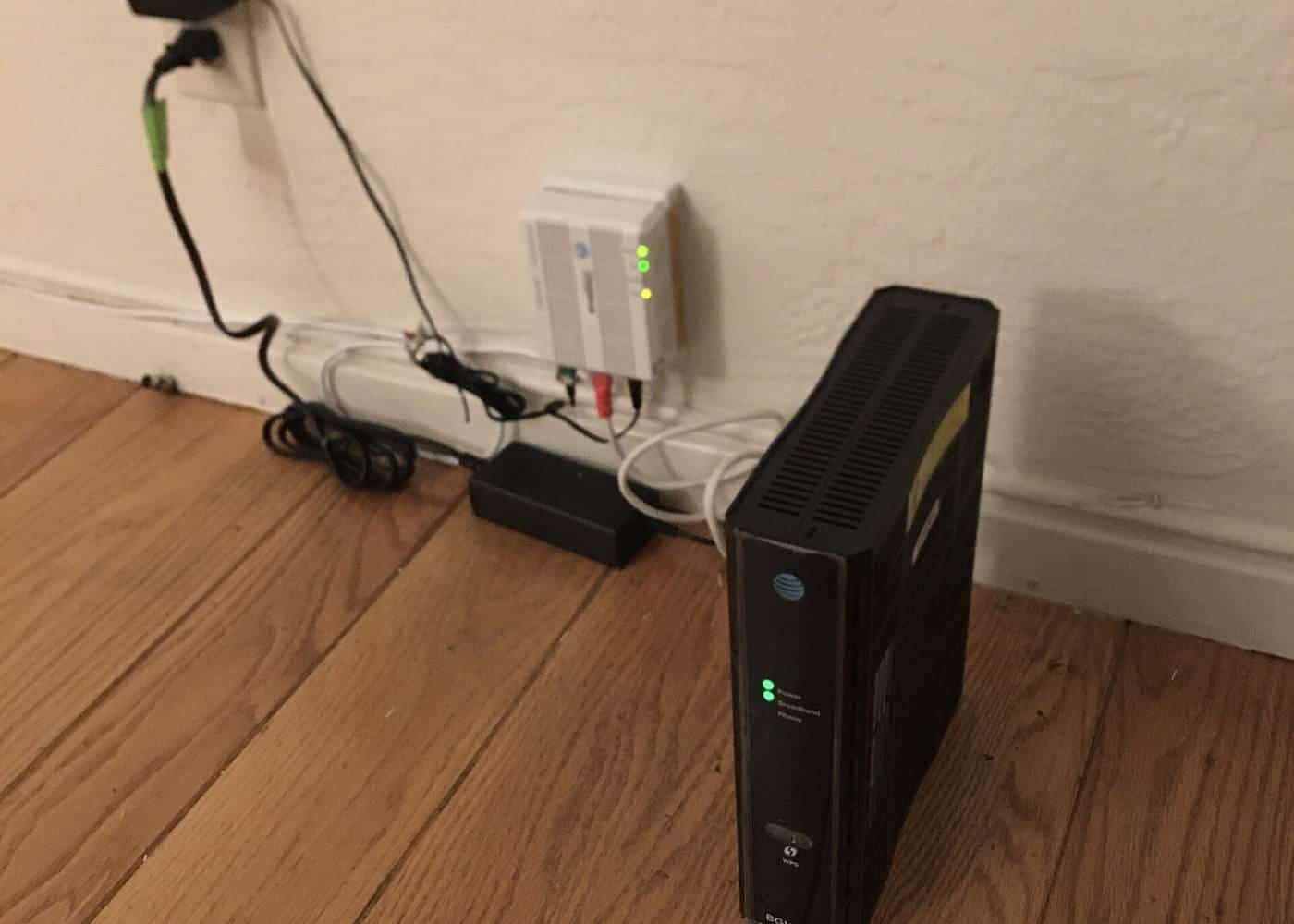
- Use WPA2 or WPA3 encryption with a strong Wi-Fi password.
- Keep your router's firmware updated.
- Use a guest network for visitors and smart home devices.
- Turn off remote management features you don't use.
Watch out for phishing
Phishing messages try to trick you into clicking links, opening attachments, entering your login details on a fake site or paying money. They may look like they come from your employer, a colleague, a bank, a delivery company or a government agency. Warning signs include unexpected requests, urgency, unusual sender addresses, links that don't match the organisation and requests for passwords or payments.
If you're unsure, don't click. Contact the sender using details you find yourself, report suspicious messages to your IT team if you have one, and report scams to Scamwatch.
Beware of scam calls
Scammers call people pretending to be from IT support, banks, telcos or government agencies, and ask them to install remote access software or share codes. Hang up and call back on a number you find yourself. Read our guide to remote-access scams.
Lock your devices
Lock your screen whenever you step away, use a PIN, password or biometric lock on phones and laptops, and enable encryption where available. Turn on device-finding features so you can locate, lock or erase a lost device.
Separate work and personal use
Mixing work and personal use on the same device increases risk. If you have a work device, use it only for work and don't let family members use it. If you use a personal device for work, follow your employer's policies, which may require security software, encryption or a separate profile. Keep work files in approved locations, not personal email or cloud accounts.
Protect privacy
Remote work can expose personal and confidential information. Position screens away from windows and shared spaces, use privacy screens if needed, lock away printed documents, shred confidential papers and be mindful of smart speakers and video call backgrounds. Organisations covered by Australian privacy law must protect personal information they hold, including when staff work from home.
Public Wi-Fi and working on the go
Public Wi-Fi in cafés, airports and hotels can be insecure. Avoid accessing sensitive accounts on public Wi-Fi unless you're using your employer's approved secure connection, such as a virtual private network. Your phone's hotspot is often a safer option.
Security software
Use the security features built into your operating system, and consider reputable security software. Only download software from official sources, such as the developer's website or official app stores.
If something goes wrong
If you think your device or account has been compromised, disconnect from the internet, change passwords from a secure device, turn on MFA, scan for malware and tell your employer's IT team if it's a work device. Report cybercrime through ReportCyber at cyber.gov.au, and contact IDCARE for support if your identity is at risk.
Home office security basics
0 of 8 done
Ticks are saved in this browser only.
A quick monthly security check
Set a recurring reminder to spend ten minutes on security once a month. Check that your computer, phone and router are up to date. Review which apps and browser extensions are installed and remove any you no longer use. Confirm your backup ran recently and try restoring one file to make sure it works. Look at the devices and sessions signed in to your main email account and sign out of any you do not recognise. Small checks like these catch problems early, before they turn into a lost account or missing files.
Separating work and personal use
Where you can, keep work and personal activity apart. Use a work device for work if your employer provides one, and avoid installing personal apps or games on it. On a shared family computer, give each person their own user account so that children's downloads or another person's browsing do not put your work files at risk. Do not forward work documents to personal email to get around restrictions. Your employer's security settings exist to protect both you and the information you handle.
If you think something is wrong
If you clicked a suspicious link, entered a password on a fake page or notice unusual activity, act quickly. Change the affected password from a device you trust, turn on multi-factor authentication if it is not already on, and tell your employer's IT team if work accounts or devices could be involved. Reporting quickly is never a nuisance; it helps limit the damage.
Key points
Keep devices updated, turn on multi-factor authentication, use unique passphrases, back up regularly and secure your Wi-Fi. Be wary of phishing and scam calls, lock your devices, separate work and personal use, follow your employer's policies and act quickly if something goes wrong.
Frequently asked questions
What's the most important thing I can do for security?
Keep your devices and software updated, turn on multi-factor authentication for important accounts and back up your data. These steps prevent many common attacks.
What is multi-factor authentication?
A login method that requires two or more types of proof, such as a password plus a code from an app or a physical security key. It makes it much harder for criminals to access your accounts even if they have your password.
What is a passphrase?
A password made of several random words. Passphrases are long, which makes them harder to crack, and easier to remember than complex short passwords.
Should I use my personal computer for work?
Follow your employer's policy. Many employers provide work devices or require security measures on personal devices. Keep work and personal use separate where possible.
How do I spot phishing emails?
Be wary of unexpected messages asking you to click links, open attachments, log in or pay urgently. Check the sender carefully and contact the organisation directly if unsure.
Sources and further reading
Facts on this page were checked against these primary and official sources. Conditions change — confirm before you travel or buy.
- Cyber.gov.au — Australian Signals Directorate
- Protect yourself from remote access scams — Australian Signals Directorate
- Scamwatch — National Anti-Scam Centre
- Privacy — OAIC