A good home office doesn't need to be fancy. A safe, comfortable workstation, decent lighting, a reasonably quiet spot and some healthy habits make the biggest difference. Getting the basics right can prevent aches, eye strain and fatigue, and help you focus and switch off.
This guide walks you through setting up a home workstation step by step. Your employer may have its own checklist or requirements, so check with them too.
Feet flat
Chair height
Thighs roughly level
Eye level
Screen top
About arm's length away
Move
Every 30 minutes
Change posture often
Choose your spot
If you can, choose a space you can dedicate to work, with room for a desk and chair, access to natural light, a power point and good Wi-Fi coverage. A separate room helps with focus and boundaries, but a well-chosen corner works too. Avoid working from bed or the couch for long periods; they don't support good posture.
Consider noise, foot traffic and privacy, especially if you handle confidential information or take frequent calls.
Set up your chair
Start with the chair, because it determines everything else.
- Adjust the seat height so your feet rest flat on the floor and your thighs are roughly level, with knees at about the same height as your hips.
- Sit back so your lower back is supported. Use a cushion or rolled towel if your chair lacks lumbar support.
- Leave a small gap between the front of the seat and the back of your knees.
- If your feet don't reach the floor once your arms are at the right height for the desk, use a footrest or a sturdy box.
Set up your desk
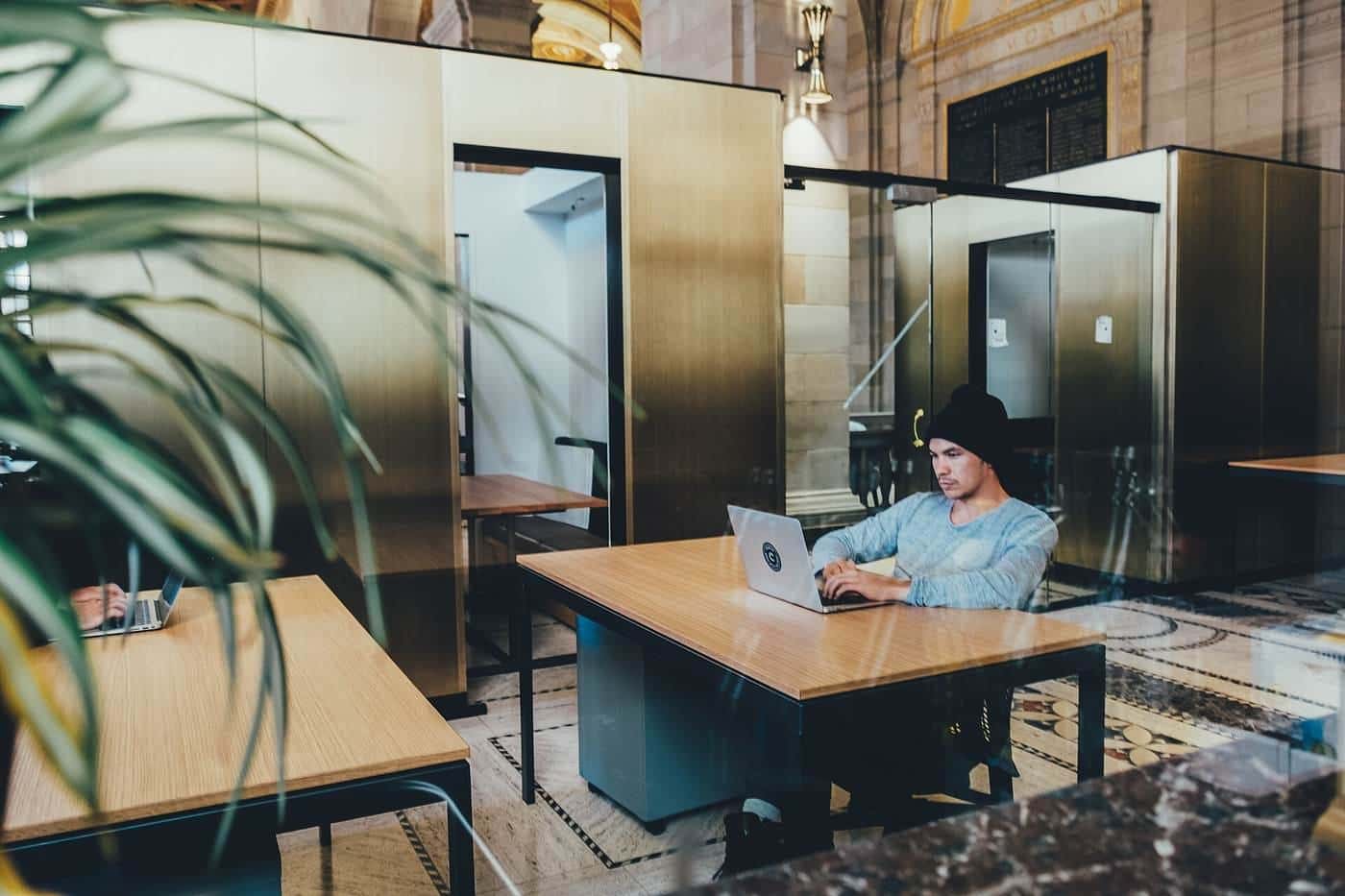
Your desk should let you type with your shoulders relaxed, elbows close to your body and bent at roughly a right angle, and forearms about level with the keyboard. If the desk is too high, raise your chair and add a footrest. Make sure there's room under the desk for your legs to move freely.
Set up your screen
- Place the screen directly in front of you, about an arm's length away.
- Position the top of the screen at or slightly below eye level, so you look slightly down at the middle of it. If you wear multifocal glasses, you may need it a little lower.
- Tilt the screen slightly back to reduce glare.
- Place the screen side-on to windows to avoid glare and reflections.
- If you use two screens, put the one you use most directly in front of you.
Laptops
Laptops are designed for portability, not long-term comfort. When the screen is at the right height, the keyboard is too high, and vice versa. For regular use, raise the laptop on a stand or a pile of books to bring the screen up, and use a separate keyboard and mouse. Alternatively, connect an external monitor.
Keyboard and mouse
Place the keyboard directly in front of you, close enough that you don't need to reach. Keep the mouse close to the keyboard at the same level. Keep wrists relaxed and straight while typing, and avoid resting them on hard edges. Learn keyboard shortcuts to reduce mouse use.
Lighting
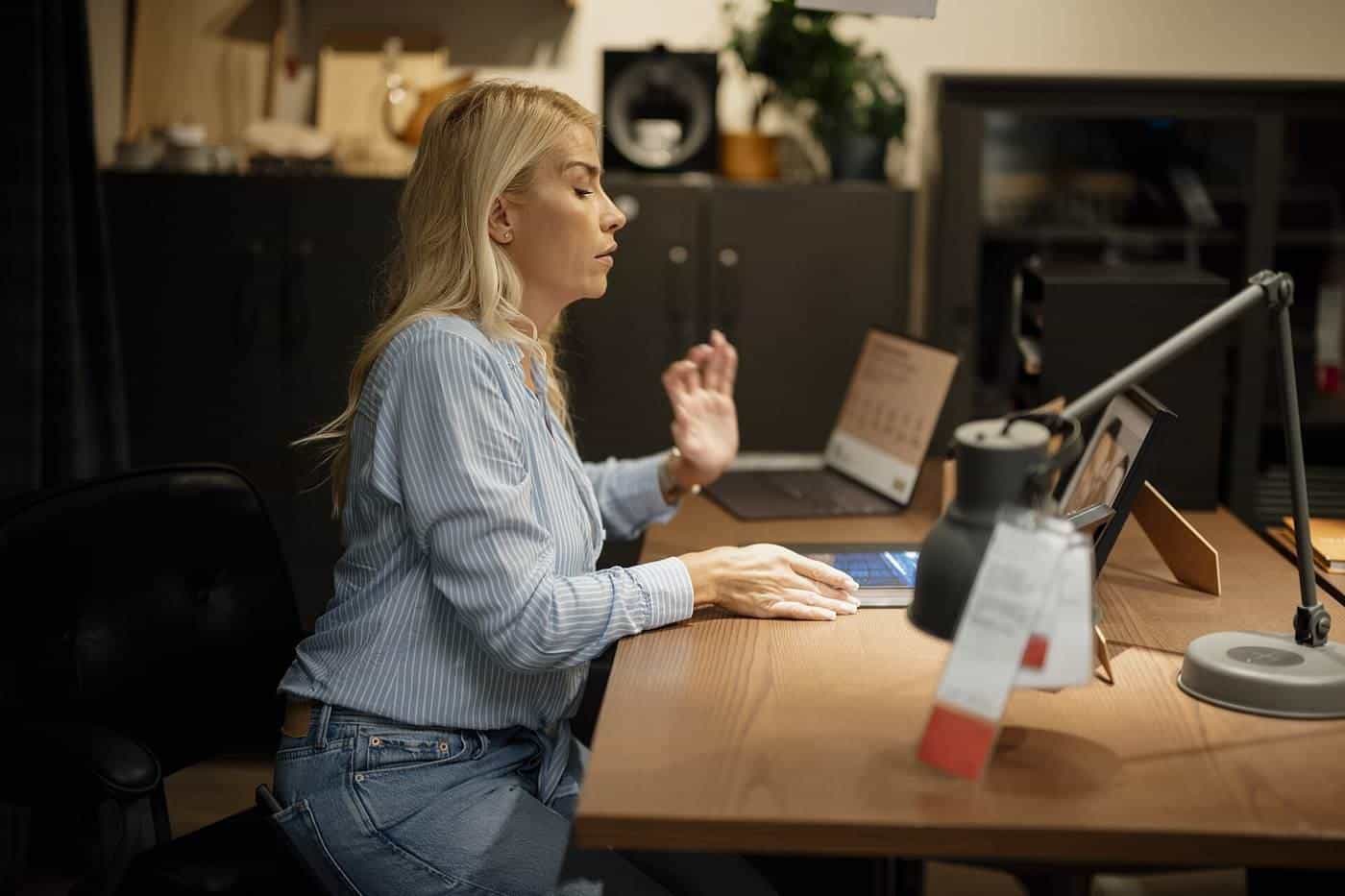
Good lighting reduces eye strain. Use natural light where possible, positioned side-on to your screen. Add a desk lamp for evenings or dim rooms, angled so it doesn't reflect off the screen. Adjust your screen brightness to match the room.
Rest your eyes
Looking at a screen for long periods can cause tired, dry eyes. Look away from the screen regularly at something in the distance, blink often and take breaks. If you have ongoing eye discomfort or headaches, see an optometrist.
Noise and temperature
Keep your workspace at a comfortable temperature and well ventilated. If noise is a problem, close the door, add soft furnishings to absorb sound, or use a headset or noise-cancelling headphones. A headset also improves call quality for everyone.
Electrical safety and trip hazards
- Don't overload power boards or daisy-chain them.
- Check cords and plugs for damage, and replace damaged equipment.
- Keep cables tidy and out of walkways to avoid trips.
- Keep liquids away from electronics.
- Make sure you have working smoke alarms and know how to get out in an emergency.
Take breaks and move
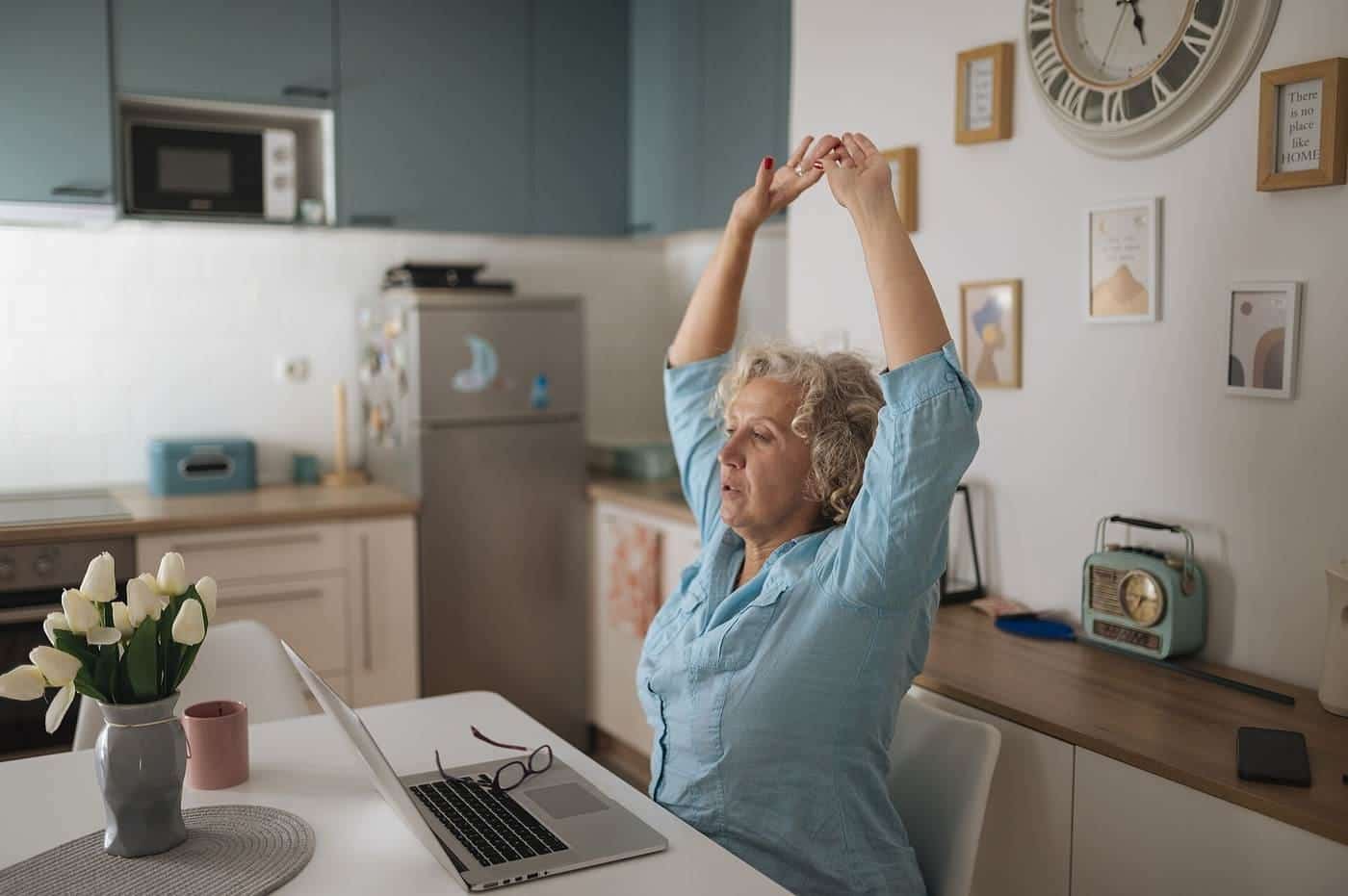
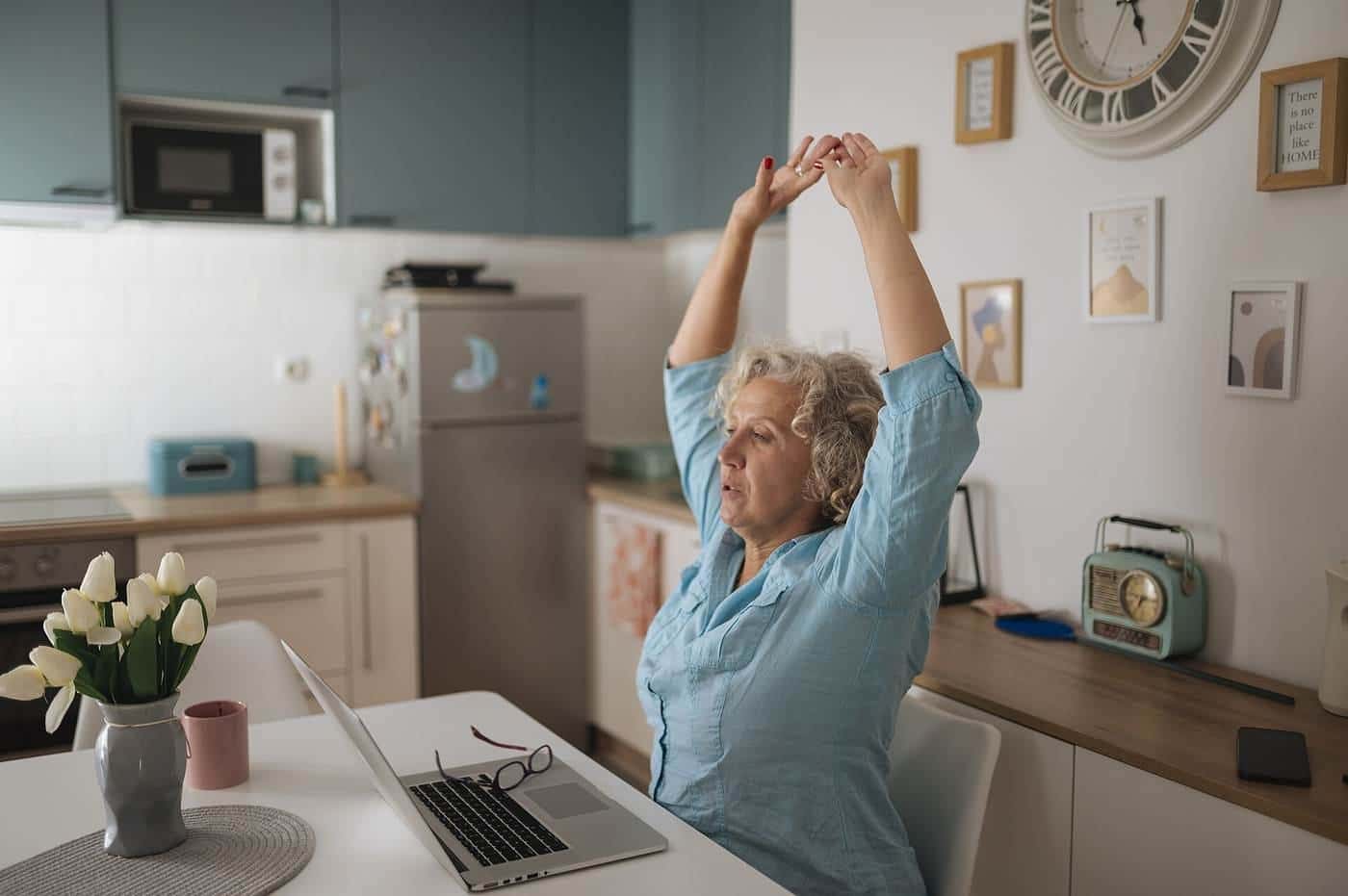
Even the best workstation isn't good for you if you sit still all day. Change your posture often, stand up and move regularly, stretch and take proper breaks away from the screen. Sit-stand desks let you vary your posture, but standing all day isn't the answer either; alternate between positions. Our wellbeing guide has more ideas.
Your employer's role
According to Safe Work Australia, employers' work health and safety duties continue when workers work from home, and employers may provide guidance on setting up a safe workstation, conduct or arrange assessments and set conditions on working from home arrangements. Workers must take reasonable care for their own health and safety and follow reasonable instructions. Report hazards or injuries to your employer as you would in the office.
Low-cost improvements
You don't need to spend a lot. A laptop stand or pile of books, an inexpensive keyboard and mouse, a cushion for lumbar support, a footrest and a desk lamp can transform a makeshift setup. Ask your employer whether it provides equipment or an allowance. If you buy equipment yourself, keep receipts; see our tax basics guide.
Workstation checklist
0 of 9 done
Ticks are saved in this browser only.
Making a small space work
Not everyone has a spare room. If you work at the kitchen table or in a bedroom corner, keep a box or basket for your work equipment so you can pack it away at the end of the day. That helps with both tidiness and switching off. A foldable laptop stand and a separate keyboard and mouse can turn any table into a reasonable workstation in a minute or two.
Cables, power and safety
Tidy cables are not only about looks. Run them along walls or under the desk rather than across walkways, where they become trip hazards. Avoid daisy-chaining power boards, do not overload a single outlet with heaters and chargers, and replace any frayed cable or damaged plug. Give laptops and chargers room to breathe rather than leaving them on beds or cushions, where they can overheat. If you are unsure whether an electrical setup is safe, ask a licensed electrician.
Key points
Adjust your chair first, then your desk, screen and keyboard so you can work with relaxed shoulders, a supported back and the screen at eye level. Use a separate keyboard and mouse with laptops, manage glare and noise, keep electrics safe, and change posture and move often.
Frequently asked questions
How high should my screen be?
A common guide is to have the top of the screen at or slightly below eye level, about an arm's length away, so you can look at it without bending your neck.
Is it OK to work on a laptop all day?
Laptops force a compromise between screen height and keyboard position. For long periods, use a separate keyboard and mouse with the laptop raised on a stand, or connect an external monitor.
Do I need an expensive ergonomic chair?
Not necessarily. What matters is a chair that adjusts to support you with feet flat, thighs roughly level and your lower back supported. A footrest or cushion can help adapt an ordinary chair.
Are standing desks better?
Changing posture through the day is the main benefit. Standing all day has its own problems. Alternate between sitting and standing, and move regularly.
Does my employer have to check my home workstation?
Employers have work health and safety duties for workers at home. How they meet them varies; some provide checklists or assessments, equipment or allowances.
Sources and further reading
Facts on this page were checked against these primary and official sources. Conditions change — confirm before you travel or buy.
- Working from home overview — Safe Work Australia
- Working from home worker information sheet — Safe Work Australia
- Physical activity guidelines — Department of Health
- Electrical safety — ACCC Product Safety