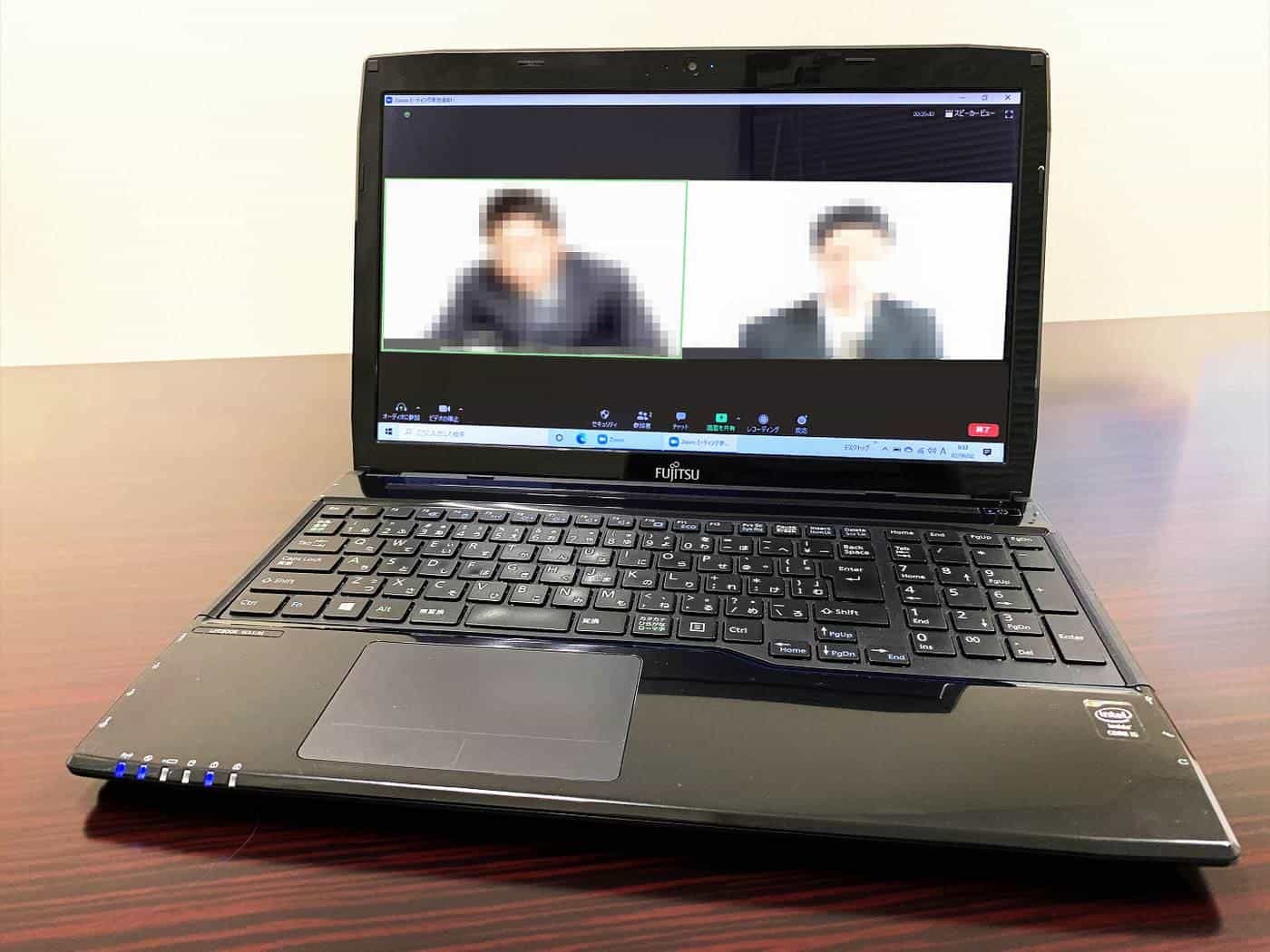
Video calls have become the meeting room, the interview room and the water cooler for remote workers. A few simple changes to your camera, lighting and sound can make you look and sound far more professional. And how meetings are run matters just as much: good online meetings are focused, inclusive and not too frequent.
This guide covers setting up for calls, etiquette, running better meetings, hybrid meetings, fatigue and security.
Eye level
Camera height
Not looking up your nose
Audio
Best upgrade
Headset or mic
Shorter
Better meetings
With an agenda
Camera
- Raise the camera to eye level. Put your laptop on a stand or pile of books, so you're not looking down at the camera.
- Frame yourself well. Sit back so your head and shoulders fill the frame, with a little space above your head.
- Look at the camera when you're speaking to create a sense of eye contact.
- Use an external webcam if your built-in camera is poor or badly placed.
Lighting
Light makes a bigger difference to video quality than the camera itself.
- Face the light. Sit facing a window or put a lamp behind your screen, so your face is evenly lit.
- Avoid backlighting. A bright window behind you will turn you into a silhouette.
- Use soft light. Diffused light is more flattering than harsh direct light. A lamp bounced off a wall works well.
Sound
Poor audio is more distracting than poor video. To sound clear:
- Use a headset or external microphone. Built-in laptop microphones pick up room echo and keyboard noise.
- Choose a quiet room with soft furnishings to reduce echo.
- Mute when you're not speaking in larger meetings.
- Test your audio before important calls.

Background
Keep your background tidy and neutral, or use your platform's background blur or virtual background. Check what's visible behind you, including personal items, confidential documents and whiteboards. Let your household know when you're on an important call.
Connection
A stable internet connection matters more than raw speed. Use a wired connection or sit close to the router, close bandwidth-hungry apps and ask others in your home to pause large downloads during important calls. If your connection struggles, turn off your video to keep audio clear. Read our internet guide.
Etiquette
- Join on time and test your setup beforehand.
- Mute when you're not speaking in large meetings, and unmute promptly when you are.
- Use the raise-hand feature or chat to contribute without talking over others.
- Allow for delays; pause before responding.
- Avoid multitasking; people can tell.
- Be mindful of eating on camera.
- Let people know if you need to step away.
Running better meetings
Online meetings can easily multiply and drag on. To make them worthwhile:
- Ask whether a meeting is needed. Could it be an email, a shared document or a chat message?
- Send an agenda with the purpose and desired outcomes.
- Keep it short. Shorter meetings with breaks between them are less tiring.
- Invite only those needed, and share notes with others.
- Start and end on time.
- Share materials beforehand so people can prepare.
- Record decisions and actions in writing.
- Include everyone. Invite quieter participants to contribute and use the chat.
Hybrid meetings
Meetings with some people in a room and others remote can leave remote participants struggling to hear and contribute. To make them fairer:
- Make sure the room has a good camera and microphone covering everyone.
- Ask in-room participants to join on their own laptops, muted, so everyone appears equally.
- Have a facilitator watch the chat and invite remote participants to speak.
- Share materials on screen rather than on a physical whiteboard.
Video fatigue
Back-to-back video calls can be draining. Constant eye contact, seeing yourself on screen and the effort of reading body language through a screen all add up. To reduce fatigue:
- Schedule breaks between meetings, and end meetings a few minutes early.
- Turn off self-view.
- Use audio-only calls for some conversations, especially one-on-ones.
- Stand or walk during audio calls.
- Replace some meetings with asynchronous updates.
Accessibility
Make meetings accessible: enable live captions where available, share materials in advance in accessible formats, describe visual content, avoid talking over each other and check whether participants need adjustments.
Privacy and security
- Use your organisation's approved platform and keep the app updated.
- Use passcodes, waiting rooms and unique meeting links for sensitive meetings.
- Don't share meeting links publicly.
- Tell participants before recording, and store recordings securely.
- Be careful about what's visible on your screen when sharing; share a single window rather than your whole desktop.
The Office of the Australian Information Commissioner has guidance on privacy obligations, and cyber.gov.au has guidance on using online collaboration tools securely.
Interviews and client calls
For job interviews and client meetings, take extra care: test your setup in advance, dress as you would in person, have notes handy and a backup plan if the connection fails, such as a phone number to call. Our remote jobs guide has more on remote interviews.
Before an important call
A short checklist before an important call saves stress. Open the meeting link five minutes early, so any software update or permission prompt happens before the start time rather than during it. Check that the right microphone, speaker and camera are selected, because laptops often switch devices when headphones or a monitor are plugged in. Close programs you do not need, especially ones that sync large files or play notifications. Put your phone on silent and face down. Have a glass of water and any notes ready, and if you will share your screen, open only the window you plan to show.
If the call matters a lot, such as an interview, a pitch or a difficult conversation, do a quick test call with a friend or use the platform's built-in test feature a day ahead. You will see your framing, hear your audio and fix problems while there is still time.
When things go wrong mid-call
Even well-prepared calls hit problems. If your video freezes, turn your camera off for a moment; audio needs much less bandwidth and usually recovers first. If people cannot hear you, check that you are not muted in two places, both in the app and on a headset. If the call drops entirely, rejoin from the same link and send a quick chat message so others know what happened. Keep a phone dial-in number handy as a backup for calls where staying connected really matters.
Stay calm and name the issue briefly, then carry on. Everyone who works remotely has had a frozen screen or a barking dog at the wrong moment, and a relaxed response usually matters more than the glitch itself.
Recording and transcripts
Many platforms can record meetings or produce automatic transcripts. These are useful for people who could not attend, but always tell participants before recording starts, and follow your organisation's rules about where recordings are stored and how long they are kept. Treat transcripts as rough notes, since automatic captions can misread names and technical terms.
Key points
Raise your camera to eye level, face the light and use a headset for clear audio. Keep meetings focused, short and inclusive, make hybrid meetings fair to remote participants, take steps to reduce fatigue and keep calls private and secure.
Frequently asked questions
How can I look better on video calls?
Face a window or soft light source, raise the camera to eye level, sit back so your head and shoulders fill the frame, and keep your background tidy or blurred.
What's the most important upgrade for calls?
Usually audio. A headset or external microphone reduces echo and background noise and makes you much easier to understand.
Do I have to turn my camera on?
It depends on your workplace's expectations and the meeting. Cameras help build connection, but constant video can be tiring. Agree on norms with your team.
How do I avoid video call fatigue?
Keep meetings shorter, schedule breaks between them, turn off self-view, use audio-only for some calls, and replace some meetings with written updates.
How do I keep meetings secure?
Use your organisation's approved platform, keep software updated, use passcodes or waiting rooms, and don't share meeting links publicly.
Sources and further reading
Facts on this page were checked against these primary and official sources. Conditions change — confirm before you travel or buy.
- Working from home overview — Safe Work Australia
- Cyber.gov.au — Australian Signals Directorate
- Office of the Australian Information Commissioner — OAIC
- Accessibility — Australian Human Rights Commission